Quick answer — the short version
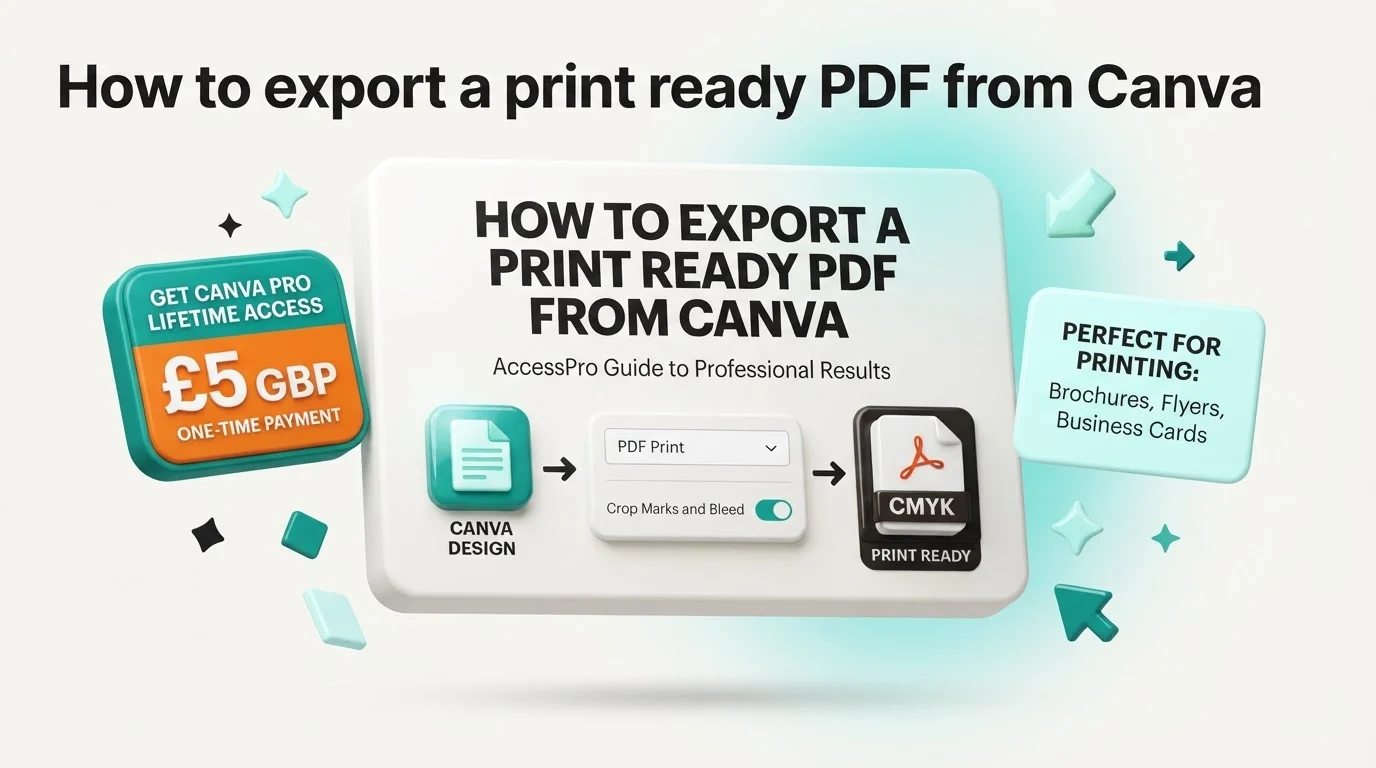
To export a print ready pdf from canva, open your completed design, click the Share button in the top right corner, select Download, and choose PDF Print from the file type dropdown menu. To ensure professional printing standards, you must check the boxes for Crop marks and bleed and select CMYK (best for professional printing) under the color profile options before clicking download. While basic digital PDFs can be saved on the free tier, accessing the essential CMYK color profile and Vector SVG exports requires a Canva Pro account, which we provide with lifetime activation for a one-time £5 GBP payment.
Choosing the correct PDF format
Canva offers two distinct PDF options: PDF Standard and PDF Print. PDF Standard is compressed at 96 DPI, which is ideal for emailing documents or viewing them on digital screens. PDF Print exports your file at a high-resolution 300 DPI, preserving the sharp vector paths of your text and illustrations so your physical prints do not look pixelated or blurry.
Activating crop marks and bleed
When you select the PDF Print option, you must manually check the box for crop marks and bleed. This action adds fine black lines at the corners of your document to guide the commercial printer's cutting blades. Enabling this feature prevents thin white borders from appearing around the edges of your finished, trimmed physical products.
Selecting the CMYK color space
Printers use cyan, magenta, yellow, and key black inks to reproduce images, whereas digital screens use red, green, and blue light. Selecting the CMYK color profile in your export settings ensures that the colors you see on your monitor closely match the physical ink pressed onto the paper, preventing dull or unexpected color shifts.
Why this matters for UK freelancers, small businesses and creators
For UK-based freelancers, solopreneurs, and small business owners, sending a low-resolution or RGB-encoded file to a commercial print house results in rejected files, wasted stock, and delayed marketing campaigns. Using the correct export settings ensures your shop window posters, business cards, and packaging designs look exactly as intended when they arrive from the printer.
Why this matters for UK freelancers, small businesses and creators - How To Tutorials and Troubleshooting
Preventing costly printing errors
Commercial printers in the UK will often reject files that lack crop marks, bleed, or proper CMYK color mapping. Re-submitting files delays your delivery times, and printing an incorrect file can waste hundreds of pounds in physical stock. Learning how to export a print ready pdf from canva protects your budget and keeps your marketing schedules on track.
Maintaining professional brand standards
When you print marketing materials using the incorrect RGB color space, vibrant on-screen blues and pinks can print as dull, muddy purples and greys. Using CMYK color profiles ensures that your brand colors remain consistent across your business cards, flyers, and physical packaging, matching the high standards of larger competitors.
Streamlining client handoffs
If you are a freelance designer, delivering a file that is not print-ready reflects poorly on your professionalism. Providing a high-resolution PDF Print file with built-in crop marks allows your clients to send the artwork straight to their chosen printing partner without technical hurdles, enhancing your reputation and securing repeat business.
What Canva Pro actually gives you here (features, limits and requirements)
While Canva's free tier allows you to design and download basic files, it imposes strict limits on professional print output. Accessing the tools required for commercial-grade physical production requires the premium features included with Canva Pro.
RGB vs CMYK color profiles
Free Canva accounts are permanently locked to the RGB color profile, which is built for digital screens. Canva Pro unlocks the CMYK color profile, allowing you to convert your designs to professional print-ready color spaces. This feature is essential for any design destined for a physical printing press.
Vector SVG and high-resolution exports
For large-format printing like banners, vehicle wraps, or signage, pixel-based images will stretch and blur. Canva Pro allows you to export your designs as Vector SVG files. This format preserves mathematical vector paths, meaning your graphics can be scaled to any physical size without losing a single pixel of clarity.
Built-in print safety margins
Canva Pro provides visual design aids directly on your canvas. You can toggle on the Show Print Bleed and Show Margins options under the View Settings menu. This displays a dashed grey border around your workspace, showing you exactly where the printer's blade will cut and helping you keep crucial text inside the safe zone.
Step-by-step walkthrough
Follow these practical steps to prepare and download your high-resolution, print-ready file from the Canva editor.
Step 1: Turn on visual margins and bleed
Before exporting, open the File menu in the top left corner of the editor, hover over View settings, and check both Show rulers and guides and Show print bleed. Ensure that any background colors or images extend past the solid design border all the way to the outer edge of the newly visible bleed area.
Step 2: Configure your download settings
Click the Share button in the top right corner of the screen, select Download, and open the File type dropdown menu. Choose PDF Print from the list. Do not select PDF Standard, as this will compress your images and lower the resolution to a level unsuitable for physical printing.
Step 3: Apply crop marks and color profiles
Check the box labeled Crop marks and bleed. If your design contains multiple pages and you only want to print specific ones, select them in the page selection dropdown. Next, change the Color profile setting from RGB (digital) to CMYK (best for professional printing), then click the purple Download button to save the file to your computer.
| Export Option | Best For | Key Difference |
|---|---|---|
| PDF Standard | Emailing and digital sharing | Compressed to 96 DPI, RGB color only |
| PDF Print | Physical flyers, cards, and posters | High-res 300 DPI, supports CMYK and bleed |
| Vector SVG | Signage, logos, and large banners | Scalable vector paths, no pixelation |
A real-world workflow example
Let us look at a practical scenario: a local business owner needs to design and print high-quality posters for their retail storefront.
Designing for physical spaces
To create an eye-catching display, you can start with one of Canva's pre-made Shop Window Poster Templates for Local Businesses. Once the template is open, adjust the text, swap in your product images, and apply your brand colors.
Preparing the file for the printer
Before exporting, ensure that all text elements are placed at least 10mm away from the page edge to avoid being cut off. Extend your background images slightly past the document border into the bleed area. Run the export using the PDF Print setting with crop marks and the CMYK color profile selected, then send the downloaded file straight to your local print shop.
AI shortcuts: Magic Studio and Claude MCP automation
Canva Pro integrates advanced AI tools and developer protocols that speed up your print production workflows, allowing you to automate repetitive design tasks.
Magic Switch and automated resizing
If you have designed a flyer and need to turn it into a large-format poster, you do not have to recreate the artwork from scratch. Canva Pro's Magic Switch tool allows you to instantly resize your design to any custom dimensions. The AI automatically adjusts the layout, text scaling, and asset placement to fit the new aspect ratio while preserving your print bleed settings.
Bulk Create with CSV files
If you need to print hundreds of unique items like custom event tickets, labels, or certificates, you can use the Bulk Create tool. Upload a CSV spreadsheet containing your variable data, map the data fields to the text boxes in your design, and Canva will generate over 100 unique, print-ready pages in under 10 seconds, saving hours of manual editing.
Claude Desktop and ChatGPT MCP integration
For advanced automation, Canva Pro can be connected to external AI models using the Model Context Protocol (MCP). By configuring this link, you can use Claude Desktop to generate layout structures, draft design copy, or trigger automated image-generation workflows. For a complete guide on setting up this developer connection, read our tutorial on How to Run Canva MCP Server Setup Step by Step.
Common mistakes and how to avoid them
Even with the right export settings, simple design mistakes can ruin your physical prints. Here is how to identify and fix them before you send your files to production.
Low-resolution background images
Exporting a PDF at 300 DPI will not fix an image that was blurry to begin with. If you upload low-quality photos, they will still look pixelated when printed. Always use high-resolution assets. Canva Pro includes a library of over 100 million premium stock photos, illustrations, and vectors that are fully licensed for commercial use and optimized for high-quality printing.
Leaving text in the trimming zone
If you place text too close to the edge of your design, the printer's cutting blade may slice through your words due to minor physical shifts during the trimming process. Always keep important text, logos, and contact information inside the safe print margins (at least 3mm to 5mm from the edge of the page).
Forgetting to extend background colors
If your background color or image stops exactly at the edge of your design canvas rather than extending into the bleed area, thin white slivers of paper will show around the edges after the printer cuts the sheets. Always stretch your background assets to the very outer edge of the bleed line.
What this replaces: honest cost comparison
Using Canva Pro as your primary print design tool replaces the need for an expensive stack of separate creative software subscriptions, saving your business significant capital.
| Tool Category | Standalone Monthly Cost elsewhere | Canva Pro Lifetime (AccessPro) |
|---|---|---|
| Professional Design Software | £45 - £70 | Included |
| Premium Stock Photo Library | £25 - £40 | Included (100M+ assets) |
| AI Design & Editing Tools | £16 - £32 | Included (Magic Studio) |
| Cloud Storage (100GB+) | £5 - £10 | Included (100GB) |
| Font Licensing | £8 - £16 | Included (Custom uploads) |
| Total Monthly Cost | £118 - £220 | £5 One-Time Payment |
Eliminating recurring design software fees
Professional design software suites often cost between £45 and £70 per month, which is a significant barrier for local businesses and independent creators. By switching to Canva Pro, you get the same high-resolution CMYK print exports, vector tools, and professional layouts without the burden of a monthly subscription.
Replacing expensive stock photo plans
Buying individual commercial licenses for high-resolution stock photos can cost £25 to £40 per month. Canva Pro includes unlimited access to over 100 million stock assets, 4K videos, audio tracks, and illustrations, allowing you to design print-ready layouts without worrying about extra licensing fees.
Consolidating your creative workflow
Instead of paying separate monthly fees for cloud storage, font licensing, and background removal tools, Canva Pro combines these features into a single workspace. This consolidation saves you between £118 and £220 per month compared to maintaining an equivalent standalone software stack.
Get Canva Pro lifetime access for £5
If you want to create professional, print-ready files without paying expensive monthly software fees, we can help. AccessPro provides fully activated Canva Pro accounts for a single, one-time payment of £5 GBP, with no recurring monthly subscriptions or annual renewal fees.
What you get with our Canva Pro lifetime activation
Our £5 one-time payment unlocks Canva's premium tier, giving you access to over 100 million stock assets, 610,000+ premium templates, Magic Studio AI tools, and the Brand Kit Hub for up to 100 brands. You also receive 100GB of cloud storage, CMYK print-ready PDF and Vector SVG exports, Bulk Create automation, and optional integration with Claude Desktop or ChatGPT.
Instant WhatsApp delivery and lifetime guarantee
We deliver your login credentials or account invite digitally over WhatsApp within 3 to 15 minutes of payment confirmation, with most orders completed in under 5 minutes. Your purchase includes a lifetime replacement guarantee, meaning we will issue a free replacement within 10 minutes if your account is disrupted, alongside a 30-day full refund policy if activation cannot be completed.
Step-by-step checklist to complete before your purchase
- Ensure you have a WhatsApp account active on your phone or computer for fast delivery.
- Check that you have your branding assets (logos, custom fonts, HEX codes) ready to upload to your new Brand Kit Hub.
- If you plan to automate your print designs, prepare your data in a CSV or spreadsheet format for the Bulk Create tool.
- Save our support number (+44 7446 367457) in your contacts for quick access to our team.
Conclusion
To export a print ready pdf from canva, you must use the PDF Print setting, check the crop marks and bleed box, and select the CMYK color profile. This process ensures your physical marketing materials, posters, and business cards are printed with sharp text, accurate colors, and clean edges. To unlock these professional print features alongside 100GB of cloud storage and premium design tools for a single, one-time payment, get your account activated today.
Business name: AccessPro
Phone: +44 7446 367457
Email: [email protected]
Website: https://tools.epsoldev.com
Address: United Kingdom
Locations served: United Kingdom, England, Scotland, Wales, Northern Ireland, Worldwide (digital WhatsApp delivery)
Services: Canva Pro lifetime account activation for a £5 GBP one-time payment — no monthly fees, no renewals, 100M+ premium stock photos, 4K videos, audio tracks, vectors and illustrations with full commercial licences, 610,000+ premium design templates covering social, print, presentation and video formats, Magic Studio — 40+ AI tools including Magic Write, Magic Grab, Magic Expand, Magic Eraser and Magic Media, AI Background Remover for both photos and video, with studio-grade cutouts, Magic Switch and Magic Resize — reformat one design for every social and print size in a click, Brand Kit Hub — store up to 100 brand kits with logos, uploaded custom fonts and HEX colour palettes, 100GB cloud storage with unlimited nested folders and permission-based sharing, Claude Desktop and ChatGPT Model Context Protocol (MCP) connection for automated Canva design workflows, Bulk Create — generate 100+ unique designs from a CSV or spreadsheet in seconds, Social Media Content Planner with direct publishing to Instagram, Facebook, LinkedIn, Pinterest, TikTok and X, Smart Mockup Generator with 8,000+ device, apparel, packaging and billboard mockups, Canva Websites and landing pages with custom domain mapping and live analytics, Vector SVG and CMYK print-ready PDF export with bleed and crop marks, Infinite Whiteboards, interactive charts and animated infographic tools, Design version history with automated cloud backups and revision restore, Instant WhatsApp delivery and setup support on +44 7446 367457, 08:00–23:00 GMT, seven days a week, Lifetime replacement guarantee, plus a 30-day full refund if activation cannot be completed. Order now and Get Canva Pro Lifetime — £5 delivered directly to your phone.