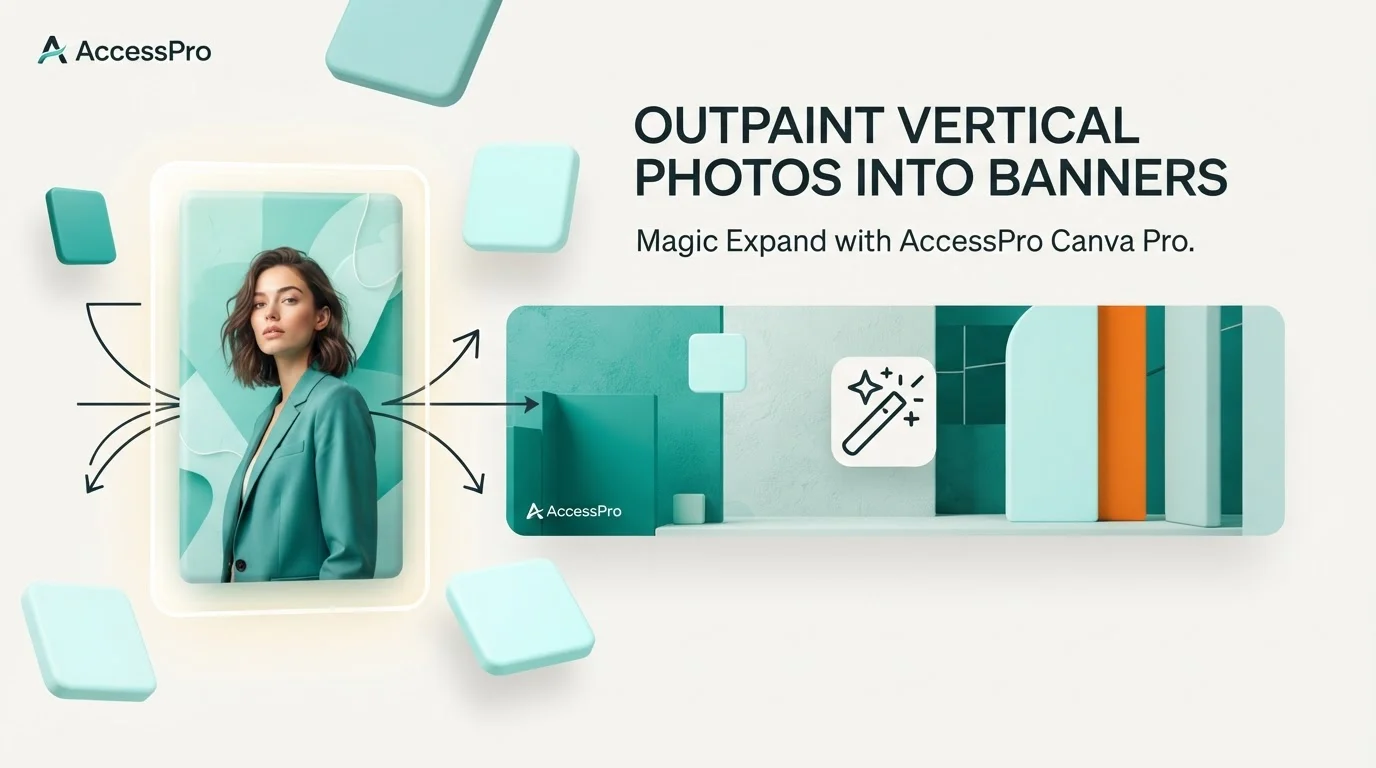
Using Canva AI and Magic Studio, magic expand outpainting vertical photos into banners allows you to extend portrait framing into wide website headers without distortion. At AccessPro, we provide lifetime access to Canva Pro for a £5 GBP one-time payment, unlocking the full Magic Studio suite instantly.
Key takeaways
- Aspect transformation: Magic Expand generates context-aware side margins, converting 9:16 vertical photos into wide 16:9 or custom banner layouts.
- Zero distortion: AI outpainting reconstructs textures and backgrounds instead of stretching, blurring, or destructive cropping.
- Commercial utility: Wide extended banners create clean negative space for marketing copy, brand logos, and call-to-action buttons.
- Cost efficiency: Canva Pro replaces standalone AI generative tools costing £16–£32 per month for an outright £5 one-time fee.
Quick answer — the short version
To outpaint a vertical photo into a horizontal banner, place your vertical image onto a wide canvas, select Edit image, choose Magic Expand inside Magic Studio, select your desired ratio, and click Expand. The generative AI engine synthesises realistic background pixels on both sides of the subject, leaving your focal point intact while generating ample copy space for headings and buttons.
Accessing the Magic Expand tool
Select your photo on the Canva canvas to open the top toolbar, then click Edit image. Inside the tools panel, locate Magic Studio and click Magic Expand to open the generative expansion interface.
Selecting canvas dimensions
Choose between preset aspect ratios like 16:9, whole page, or drag the boundary handles manually to fill your custom banner dimensions. The tool lets you freely adjust margins across both lateral borders.
Generating fill variations
Click the expand button to prompt Canva's AI to evaluate the surrounding light, textures, and depth of field. The system produces four distinct generative results, allowing you to select the natural visual match.
Why this matters for UK freelancers, small businesses and creators
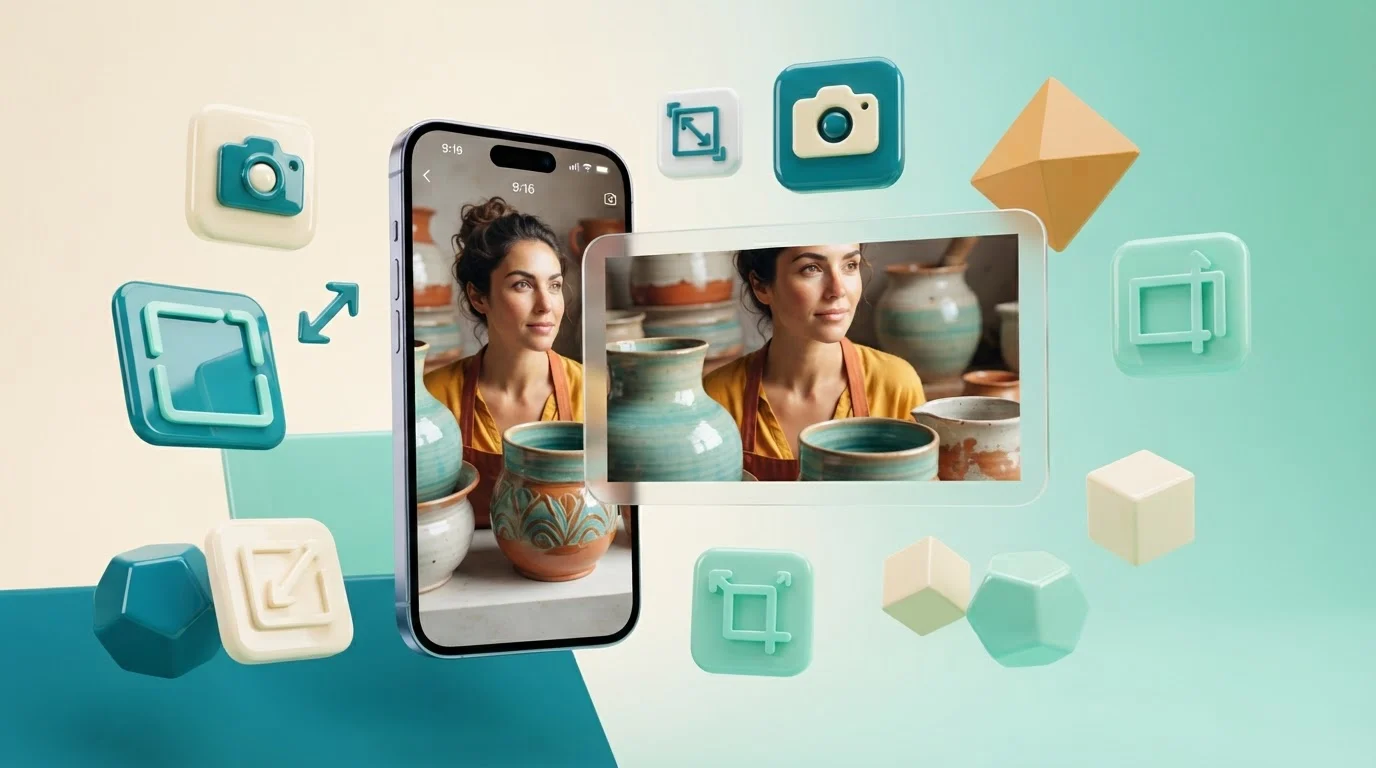
Smartphone cameras capture content in vertical 9:16 orientation, whereas desktop websites, LinkedIn banners, and shop headers require horizontal 16:9 or panoramic formats. For UK freelancers and shop owners, trying to place a portrait product image into a horizontal header usually forces aggressive cropping that cuts off the subject.
Why this matters for UK freelancers, small businesses and creators - Canva AI and Magic Studio
Preserving composition without crop loss
Standard cropping removes up to 60 percent of a vertical photo's original framing to make it fit a wide space. Magic Expand outpainting vertical photos into banners retains the full vertical figure or product shot while synthesizing believable peripheral space.
Creating clear copy space for conversions
Wide web headers require negative space where text, trust badges, and promotional headlines can sit legibly. By outpainting your background sideways, you manufacture balanced background areas designed specifically to house clear typography.
Avoiding expensive agency tools
Freelancers cannot always justify professional design software elsewhere at £45–£70 per month or standalone AI design subscriptions at £16–£32 per month. Magic Studio handles generative outpainting natively inside your canvas workspace for zero recurring overhead.
What Canva Pro actually gives you here (features, limits and requirements)
Canva Pro includes Magic Studio with over 40 AI design tools, featuring Magic Expand, Magic Grab, and Magic Eraser. Understanding the engine's technical boundaries ensures you achieve sharp, commercially usable image banners.
Image resolution requirements
Magic Expand works best on high-resolution source imagery with clear context along the borders. If the vertical image is heavily compressed, the generated margins may reproduce subtle noise or soft textures matching the original file.
Edge complexity and prompt controls
Canva allows you to expand freely using automated context matching or custom text prompts. Supplying specific prompts helps the AI generate accurate architecture, foliage, or studio backdrops when simple extrapolation needs extra guidance.
Generation allowances and asset rights
Canva Pro includes commercial licences for stock assets, templates, and finished banner exports. The generated artwork can be deployed directly into client work, digital advertisements, or commercial ecommerce sites.
| Tool Option | Target Audience | Primary Function |
|---|---|---|
| Free Canva Plan | Casual hobbyists | Manual cropping and stretching |
| Canva Pro (AccessPro) | Freelancers & creators | Generative Magic Expand outpainting |
| Standalone AI Suite | Technical designers | Complex node prompt engineering |
Step-by-step walkthrough
Converting a vertical smartphone photograph into an ultra-wide web banner takes less than two minutes when following this workflow. Setting your base dimensions properly from the start ensures your final layout remains sharp across all screens.
Step 1: Create your target banner canvas
Create a custom-dimension design matching your exact output requirements, such as 1920x1080 pixels for a display ad or 1584x396 pixels for a LinkedIn cover. Upload your vertical photo and position it centrally on the blank horizontal canvas.
Step 2: Open Magic Expand in Magic Studio
Click the vertical photograph, navigate to Edit image, and select Magic Expand from the Magic Studio menu. Choose Whole page or drag the bounding box corners until the borders meet the outer edges of your wide canvas.
Step 3: Review and finalise the expansion
Click Magic Expand to run the generative outpainting process. Review the four generated variations, select the layout with the cleanest lighting balance, and click Done to lock the new horizontal background into place. If you need to reformat for different platforms later, avoid mistakes when you resize designs with Magic Switch to ensure your layout holds up.
A real-world workflow example
Consider an independent UK online seller who photographed an artisanal product on a mobile phone in 9:16 portrait orientation. They need an expansive 1200x630 pixel Facebook banner to promote a seasonal sale.
The initial layout conflict
Centring the portrait product shot in the wide canvas leaves severe white borders on the left and right. Traditional cropping zooms in so far that the top of the product is sliced off, ruining the image framing.
Executing the horizontal expansion
The seller opens Magic Expand, drags the frame to fill the canvas width, and prompts the tool with "wooden studio tabletop with blurred workshop background". Within seconds, Magic Studio populates both empty sides with matching wood grain and coherent lighting.
Layering conversion elements
With the expanded background secured, the seller uses Canva Pro's Brand Kit Hub to drop in their stored brand colours, logos, and custom typography. The resulting wide banner looks intentional, balanced, and studio-produced without any pixel stretching.
AI shortcuts: Magic Studio and Claude MCP automation
Canva Pro allows you to streamline banner production further by linking multiple AI features together in sequence. You can also connect your account directly to external workflow engines.
Pairing Magic Expand with Magic Grab
After outpainting your background, use Magic Grab to detach the central portrait subject from the newly generated backdrop. This lets you shift the subject slightly to the right or left to make room for promotional copy without disturbing the background. However, be mindful of visual plane alignment; review mistakes when Magic Grab moves flat photo subjects to avoid odd depth-of-field mismatches.
Automated text removal using Magic Eraser
If your original portrait background had distracting background objects, Magic Eraser removes them cleanly before expansion. This keeps the outpainted edges consistent and prevents unwanted artifacts from multiplying across the wider canvas.
Connecting Claude Desktop and ChatGPT via MCP
Canva Pro accounts can be linked to Claude Desktop or ChatGPT using Model Context Protocol (MCP). This integration allows you to run automated design workflows, programmatic resizing requests, and bulk layout adjustments directly from text prompts.
Common mistakes and how to avoid them
Outpainting vertical photos into banners relies on generative pattern matching. Avoiding basic layout missteps ensures your extended images look authentic and crisp.
Expanding low-contrast or clipped edges
If the subject's arms, head, or base are already cut off by the camera frame in the original photo, Magic Expand may struggle to synthesise the missing anatomy cleanly. Always expand backgrounds rather than trying to regenerate cut-off human details.
Ignoring perspective and depth lines
When expanding backgrounds containing sharp architectural lines or horizon markers, inspect the seams closely. If perspective lines warp across the boundary, re-run the generation using descriptive prompt terms like "straight brick wall horizon".
Over-expanding beyond natural focal balance
Turning a tight 9:16 portrait into a 32:9 ultra-wide banner requires generating four times the original image area. For ultra-wide banners, place the subject off-centre so the AI only needs to synthesise pixels on one broad flank.
What this replaces: honest cost comparison
Assembling a creative toolkit across separate vendors costs hundreds of pounds annually. Sourcing separate software for graphic design, AI generation, photo assets, and background extraction quickly strains any small business budget.
Software stack cost breakdown
Building an equivalent creative stack with separate subscriptions totals between £118 and £220 per month. That represents an ongoing overhead of over £1,400 every single year just to produce basic marketing graphics.
The one-time AccessPro model
AccessPro provides fully activated Canva Pro lifetime access for a £5 GBP one-time payment. You bypass recurring monthly bills while gaining unrestricted access to the complete Magic Studio AI toolset, Brand Kit Hub, and 100GB cloud storage.
| Tool Category | Standalone Monthly Cost | AccessPro Canva Pro |
|---|---|---|
| Professional design software | £45–£70 | Included (£5 one-time) |
| Premium stock photos | £25–£40 | Included (100M+ assets) |
| Dedicated AI design tools | £16–£32 | Included (Magic Studio) |
| Background removal tools | £7–£12 | Included (Photo & Video) |
| Cloud storage (100GB) | £5–£10 | Included (100GB) |
Pre-expansion design checklist
- [ ] Check that source portrait image borders do not cut off crucial subject anatomy.
- [ ] Set your destination banner canvas to exact display dimensions (e.g., 1920x1080 or custom web banner).
- [ ] Run Magic Expand and test both automated fill and prompted generative fill.
- [ ] Check all four generated variations for realistic lighting, grain, and perspective alignment.
- [ ] Use Magic Grab if the subject needs repositioning to balance headline typography.
- [ ] Export your banner as a high-resolution PNG or vector-ready PDF.
Get Canva Pro lifetime access for £5
For UK freelancers, sole traders, and digital marketers, paying monthly software retainers makes little financial sense. Our activated Canva Pro accounts provide lifetime access to Magic Studio, 100M+ stock assets, Brand Kit Hub, and 100GB cloud storage for a single £5 payment.
Instant delivery over WhatsApp
We deliver credentials and setup links directly to your WhatsApp within 3 to 15 minutes, with most setups finished in under 5 minutes. Our support team is active 7 days a week from 08:00 to 23:00 GMT on +44 7446 367457 to guide you through activation.
Lifetime guarantee and buyer protection
Every account includes our lifetime replacement guarantee, providing a replacement within 10 minutes if your access is ever disrupted. We also provide a 30-day full refund policy if activation cannot be completed.
Conclusion
Outpainting vertical photos into banners using Magic Studio solves aspect ratio conflicts instantly while leaving your original image composition completely intact. This workflow is the ideal solution for creators and business owners needing polished horizontal web graphics from vertical smartphone media without ongoing agency software costs.
Business name: AccessPro. Phone: +44 7446 367457. Email: [email protected]. Website: https://tools.epsoldev.com. Address: United Kingdom. Locations served: United Kingdom, England, Scotland, Wales, Northern Ireland, Worldwide (digital WhatsApp delivery). Services: Canva Pro lifetime account activation for a £5 GBP one-time payment — no monthly fees, no renewals, 100M+ premium stock photos, 4K videos, audio tracks, vectors and illustrations with full commercial licences, 610,000+ premium design templates covering social, print, presentation and video formats, Magic Studio — 40+ AI tools including Magic Write, Magic Grab, Magic Expand, Magic Eraser and Magic Media, AI Background Remover for both photos and video, with studio-grade cutouts, Magic Switch and Magic Resize — reformat one design for every social and print size in a click, Brand Kit Hub — store up to 100 brand kits with logos, uploaded custom fonts and HEX colour palettes, 100GB cloud storage with unlimited nested folders and permission-based sharing, Claude Desktop and ChatGPT Model Context Protocol (MCP) connection for automated Canva design workflows, Bulk Create — generate 100+ unique designs from a CSV or spreadsheet in seconds, Social Media Content Planner with direct publishing to Instagram, Facebook, LinkedIn, Pinterest, TikTok and X, Smart Mockup Generator with 8,000+ device, apparel, packaging and billboard mockups, Canva Websites and landing pages with custom domain mapping and live analytics, Vector SVG and CMYK print-ready PDF export with bleed and crop marks, Infinite Whiteboards, interactive charts and animated infographic tools, Design version history with automated cloud backups and revision restore, Instant WhatsApp delivery and setup support on +44 7446 367457, 08:00–23:00 GMT, seven days a week, Lifetime replacement guarantee, plus a 30-day full refund if activation cannot be completed. Order directly today: Get Canva Pro Lifetime — £5.