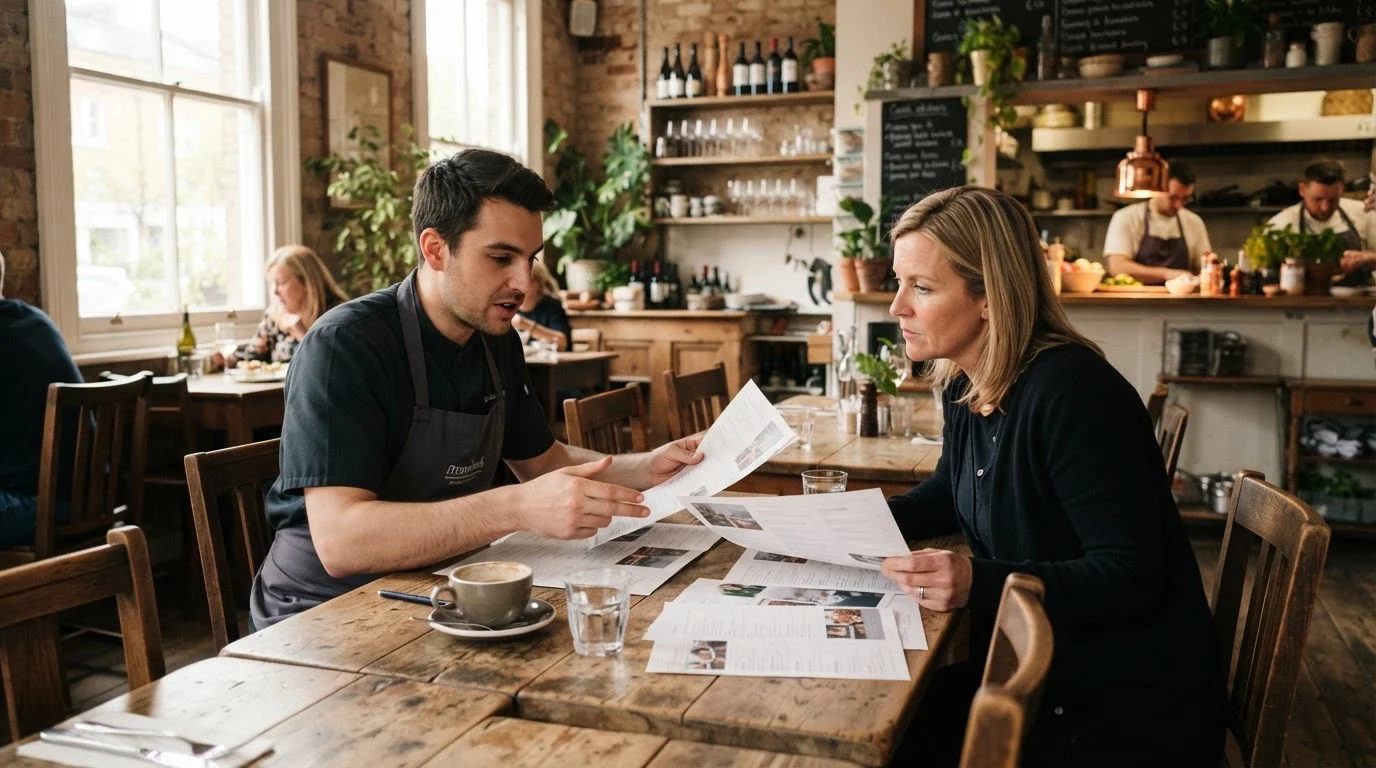
Mastering restaurant menu design in Canva Pro allows UK small hospitality venues, freelancers, and independent chefs to build commercial-grade, print-ready menus without paying £45–£70 per month for complex graphic software. In small business and local marketing, an appetising, well-structured menu directly increases average spend per table while ensuring commercial print shops receive flawless files with crop marks and bleed. By using Canva Pro features such as CMYK PDF export, custom Brand Kits, and Magic Studio AI tools, hospitality operators can create, update, and print seasonal menus on demand.
Key Takeaways
- Canva Pro provides direct CMYK print-ready PDF exports with bleed and crop marks, avoiding print distortion and blurry graphics.
- The Brand Kit Hub lets hospitality businesses store up to 100 brand profiles, holding specific restaurant HEX colours, logos, and custom uploaded fonts.
- Magic Switch re-formats a single A4 dine-in layout into table-talker inserts, Instagram specials, and digital QR menus in seconds.
- AccessPro provides lifetime Canva Pro account activation for a £5 GBP one-time payment with instant WhatsApp delivery in 3–15 minutes.
Quick answer — the short version
To master restaurant menu design in Canva Pro, set your custom canvas size with print bleed enabled, apply your saved Brand Kit assets, and build your layout around clear visual hierarchy. Once your design is complete, export the file as a print-ready PDF using the CMYK colour profile to guarantee crisp, professional physical prints.
The core technical workflow
Start by opening Canva Pro and selecting a standard menu dimension, such as A4 (210 x 297 mm) or US Letter. Turn on Show margins and Show print bleed under your canvas settings to keep text safely away from cut lines. Build your layout using clean typography, placing high-margin specials in the primary optical zones (such as the top-right corner of a two-panel spread). Finally, export using Canva Pro's PDF Print profile with CMYK selected rather than RGB to ensure your physical colours match your on-screen vision.
Key layout requirements
A functional menu balances clear visual hierarchy, item descriptions, and tidy price alignment. Keep price points unobtrusive by dropping currency symbols or placing figures directly after item descriptions rather than in a dedicated column that encourages price shopping. Group items into distinct dietary, drink, and course categories using subtle borders and dividers.
Why this matters for UK freelancers, small businesses and creators
Running a hospitality venue or designing for local food businesses requires continuous updates for seasonal ingredients, inflation-driven price tweaks, and daily specials. Relying on an outside agency or paying £45–£70 per month for enterprise-level design subscriptions creates an unnecessary financial barrier for independent operations.
Agility in seasonal menu updates
Food prices fluctuate, and seasonal ingredients change multiple times a year. When you control your menu designs inside Canva Pro, updating a supplier change or adjusting a cocktail price takes less than two minutes. You eliminate back-and-forth design proofs and agency delay fees, letting you push daily specials to the printer or table QR codes immediately.
Brand consistency across local touchpoints
Small business and local marketing depends on recognisable, coherent visual cues. Your physical menu must reflect the exact look and feel of your curbside sandwich board, your takeaway flyers, and your social channels. Canva Pro makes this simple by letting you share design templates across your team while maintaining locked brand assets.
What Canva Pro actually gives you here (features, limits and requirements)
Canva Pro unlocks an expansive suite of commercial-grade design tools that elevate basic menu layouts into agency-standard print documents. Here is what the platform provides, along with practical requirements and limits you should know before designing.
Print-ready vector and CMYK exports
The free tier of Canva limits exports to RGB, which causes muddy, inaccurate colour shifts when sent to commercial litho or digital printers. Canva Pro unlocks Vector SVG and CMYK print-ready PDF exports complete with toggleable bleed and crop marks. This gives professional printers the exact colour space and alignment trim markers they require.
Brand Kit Hub and custom font uploads
Food venues rely heavily on distinct typography to communicate atmosphere, from rustic serif typefaces to modern minimal fonts. Canva Pro's Brand Kit Hub lets you store up to 100 brand kits, each housing logos, custom HEX colour palettes, and uploaded brand fonts. You can review how to store essential logo variations in brand kits to ensure your secondary logos and mono emblems remain accessible to your team.
AI Background Remover and food asset libraries
Amateur food photography often fails because of cluttered kitchen backgrounds or poor lighting. Canva Pro includes an AI Background Remover for both photos and video that delivers studio-grade cutouts. Once isolated, you can drop dishes into your layout or draw from Canva's 100M+ commercial-licensed premium stock photos, illustrations, and food graphics.
| Feature / Asset | Free Tier | Canva Pro (AccessPro Activation) |
|---|---|---|
| Export Colour Profile | RGB Only (Digital) | CMYK Print-Ready & RGB |
| Print Alignment Tools | Basic Margins | Professional Bleed & Crop Marks |
| Custom Font Uploads | Not Supported | Supported via Brand Kit Hub |
| Brand Kit Capacity | 0 Profiles | Up to 100 Brand Kits |
| Stock Photo & Graphic Library | Limited Assets | 100M+ Commercial Assets |
| Cloud Asset Storage | 5GB | 100GB with Nested Folders |
| Automation & AI Tools | Very Limited | 40+ Magic Studio AI Tools |
Step-by-step walkthrough
Designing an effective menu requires moving systematically from canvas configuration to final pre-press production. Follow these clear steps to build your file correctly from the start.
1. Canvas setup and print bleed
Create a custom design using standard dimensions (for example, standard UK A4: 210 x 297 mm). Head to the File menu, navigate to View settings, and turn on both Show margins and Show print bleed. The outer bleed border adds the standard extra margin required by commercial printers to avoid white edges during slicing. Keep all vital text at least 5 mm inside the margin line.
2. Typography and optical layout structure
Apply your custom fonts via your Brand Kit. Set an optical hierarchy: Section Headings (20–24pt), Dish Names (12–14pt bold), Descriptions (9–10pt regular), and Dietary Indicators (8pt). Use subtle graphic dividers to separate courses. Never crowd the canvas; white space gives the diner room to read without feeling overwhelmed.
3. Food photography isolation and styling
If you feature photos of high-profit signature dishes, upload high-resolution files. Select the photo, open Edit photo, and run the AI Background Remover to isolate the plate cleanly. Use subtle shadows or pair the image with a textured frame to ground it naturally within the layout.
4. CMYK PDF pre-press export
When your layout is approved, click Share, then Download. Change the file type to PDF Print. Check the boxes for Crop marks and bleed and Flatten PDF (which prevents font dropouts at the print shop). Finally, select CMYK under the colour profile options and save the file to your hard drive.
A real-world workflow example
Consider a local bistro launching an autumn evening menu and an accompanying weekend brunch menu. Rather than starting from scratch, the manager handles the entire campaign inside Canva Pro.
Setting up the core A4 dinner menu
The bistro manager opens Canva Pro and selects a bi-fold A4 template from the 610,000+ template library. By clicking Apply Brand Colours from the Brand Kit Hub, the template's generic styling updates instantly to the bistro's signature navy, gold, and warm white colour palette. Custom fonts uploaded previously populate the dish headings automatically.
Multi-channel adaptation with Magic Switch
Once the main dinner menu is finalised, the bistro needs table talkers and an Instagram Story promoting their weekend brunch. The manager uses Magic Switch to reformat the A4 design into a 1080 x 1920 px vertical social graphic in one click, as well as an A6 table tent format. Canva Pro repositions text and graphic blocks automatically, requiring only minor manual spacing adjustments before publishing.
Team collaboration and feedback
The manager shares an edit link with the head chef to confirm ingredient lists and allergen markers. If your team shares editing responsibilities, check our guide on how to collaborate on a Canva design with a client to set permissions correctly so template formatting is not accidentally broken.
AI shortcuts: Magic Studio and Claude MCP automation
Canva Pro integrates over 40 Magic Studio AI tools alongside modern API capabilities, enabling rapid updates and automated asset generation.
Magic Studio photo and copy editing
When sourcing menu graphics, Magic Grab lets you select any element inside an image and reposition it as an independent asset. Magic Expand extends background imagery to fill atypical canvas proportions without distorting the subject. For quick dish descriptions, Magic Write helps draft concise, mouth-watering copy directly within your text boxes.
Automated updates via Claude Desktop and ChatGPT MCP
Canva Pro accounts can be linked to Claude Desktop or ChatGPT via Model Context Protocol (MCP). This enables automated design workflows where an external large language model reads an updated pricing spreadsheet and programmatically adjusts menu text layers inside your Canva workspace. For venues managing weekly rotating wine lists, MCP automation cuts manual data entry down to seconds.
Instant data batching with Bulk Create
For venues with large inventories—such as craft beer taprooms or wine bars—Canva Pro's Bulk Create tool allows you to link a CSV or spreadsheet containing dish names, descriptions, and prices to a single layout. The system generates 100+ formatted menu pages or shelf-talker cards in under 10 seconds.
Common mistakes and how to avoid them
Menu design balances visual marketing with strict print specifications. Avoiding these common mistakes will save you costly reprints and lost table revenue.
Exporting in RGB instead of CMYK
Screen colours are illuminated by RGB light, while printed inks absorb light via CMYK. If you export a menu file using RGB, bright reds, deep greens, and metallics turn dull and muddy on physical paper. Always select the CMYK profile in Canva Pro's PDF Print dialog before handing files to your printer.
Overcrowding the optical layout
Packing too many items onto a single page causes visual fatigue, making diners default to familiar or cheaper dishes. Limit single pages to no more than 15–20 core items. Use bold text for premium signature items and avoid listing prices with large currency symbols or connecting them with dotted leader lines, which encourages budget-first scanning.
Ignoring bleed margins
If text or borders sit too close to the edge of the page, physical paper guillotine cutters can slice off the words. Keep all essential typography inside the margins, and extend background colours fully to the outer bleed line.
What this replaces: honest cost comparison
Maintaining a professional hospitality brand typically requires several standalone digital subscriptions. Canva Pro consolidates these tools into a single platform.
| Tool Category | Standalone Monthly Cost Elsewhere | Replaced By Canva Pro Feature |
|---|---|---|
| Professional Design Software | £45–£70 | Full Canva Pro design editor & vector engine |
| Stock Photo Subscription | £25–£40 | 100M+ commercial stock assets & illustrations |
| AI Design Tools | £16–£32 | Magic Studio (40+ tools including Magic Expand) |
| Social Media Scheduler | £12–£40 | Built-in Content Planner with direct social publishing |
| Font Licensing | £8–£16 | Licensed font collection + custom font upload |
| Background Removal Tool | £7–£12 | AI Background Remover for photos and video |
| Cloud Storage | £5–£10 | 100GB secure cloud storage with nested folders |
| Total Stack Cost | £118–£220+ per month | Included in single Canva Pro account |
A standalone design and marketing stack costs £118–£220+ per month, which works out to over £1,400 per year. AccessPro replaces these recurring charges entirely with a single £5 one-time payment for lifetime access.
Pre-purchase menu design checklist
- [ ] Canvas dimensions chosen to match exact print specifications (e.g. A4, A5, US Letter).
- [ ] Show print bleed and Show margins toggled on before placing typography.
- [ ] Brand Kit loaded with company logos, custom fonts, and approved HEX colours.
- [ ] High-margin signature dishes placed in prime optical focal points.
- [ ] Pricing formatted cleanly without prominent currency symbols.
- [ ] Export set to PDF Print with Crop marks and bleed and CMYK selected.
Get Canva Pro lifetime access for £5
Independent restaurants, cafe owners, and hospitality freelancers should not have to spend hundreds of pounds annually on complex design software just to update seasonal menus. AccessPro provides fully activated Canva Pro lifetime accounts for a single £5 GBP one-time payment—with zero monthly subscriptions and no annual renewal charges.
Rapid WhatsApp delivery
Orders are delivered digitally within 3–15 minutes of payment confirmation, with most arriving in under 5 minutes. You receive direct account credentials or an invitation sent straight to your WhatsApp or email, complete with active setup support.
Backed by guarantees
We stand behind our provisioning with a lifetime replacement guarantee: if an account experiences any disruption or revocation, AccessPro provides a free replacement account within 10 minutes over WhatsApp. Furthermore, we provide a 30-day 100% full refund if your account cannot be activated or an issue cannot be resolved. Our support team is active 7 days a week, 08:00–23:00 GMT, on +44 7446 367457.
Conclusion
Mastering restaurant menu design in Canva Pro comes down to pairing professional layout principles with the platform's CMYK PDF export and Brand Kit capabilities. For UK small business owners, freelancers, and hospitality operators who need agency-quality menus without £45–£70 monthly fees, Canva Pro provides the complete production toolkit. AccessPro activates lifetime Canva Pro access for a £5 GBP one-time payment, delivered digitally via WhatsApp within 3–15 minutes.
AccessPro provides Canva Pro lifetime account activation for a £5 GBP one-time payment — no monthly fees, no renewals, 100M+ premium stock photos, 4K videos, audio tracks, vectors and illustrations with full commercial licences, 610,000+ premium design templates covering social, print, presentation and video formats, Magic Studio — 40+ AI tools including Magic Write, Magic Grab, Magic Expand, Magic Eraser and Magic Media, AI Background Remover for both photos and video, with studio-grade cutouts, Magic Switch and Magic Resize — reformat one design for every social and print size in a click, Brand Kit Hub — store up to 100 brand kits with logos, uploaded custom fonts and HEX colour palettes, 100GB cloud storage with unlimited nested folders and permission-based sharing, Claude Desktop and ChatGPT Model Context Protocol (MCP) connection for automated Canva design workflows, Bulk Create — generate 100+ unique designs from a CSV or spreadsheet in seconds, Social Media Content Planner with direct publishing to Instagram, Facebook, LinkedIn, Pinterest, TikTok and X, Smart Mockup Generator with 8,000+ device, apparel, packaging and billboard mockups, Canva Websites and landing pages with custom domain mapping and live analytics, Vector SVG and CMYK print-ready PDF export with bleed and crop marks, Infinite Whiteboards, interactive charts and animated infographic tools, Design version history with automated cloud backups and revision restore, Instant WhatsApp delivery and setup support on +44 7446 367457, 08:00–23:00 GMT, seven days a week, Lifetime replacement guarantee, plus a 30-day full refund if activation cannot be completed. We serve the United Kingdom, England, Scotland, Wales, Northern Ireland, and Worldwide via digital WhatsApp delivery. To get started, reach us by email at [email protected], call or message +44 7446 367457, visit https://tools.epsoldev.com, or order directly via WhatsApp: Get Canva Pro Lifetime — £5.